
User Accounts & User Roles
User Accounts
Any user with an Admin role can add a new user by selecting “Add User Account.” Enter the required information and select “Save User.”
From the Edit Selected User window, select “Send password reset email.” This sends an invitation to the user’s email address.
Once the user completes registration, the Status indicator will update:
- Yellow – Invitation sent, registration not yet completed
- Green – Registration complete and user is active
Edit Selected User
Selecting a user’s last name opens the Edit Selected User window.
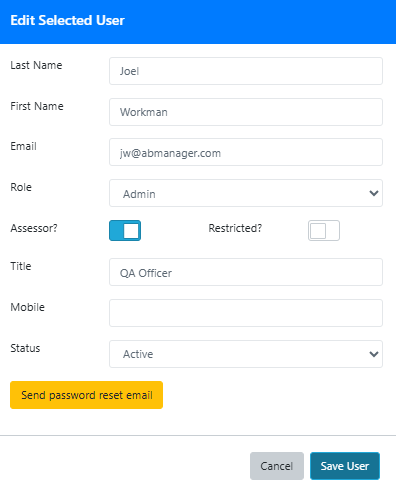
This screen allows you to view and update:
- Last Name
- First Name
- Role – Admin or User
- Assessor? – When enabled, the user will appear in dropdown lists for assigning assessors to assessments
- Restricted? – When enabled (for assessors), the user will only see laboratories and assessments assigned to them
- Title
- Mobile
- Status – Active or Inactive
Actions
- Send password reset email – Sends or re-sends the user invitation
- Save User – Saves all changes
- Cancel – Closes the window without saving
Understanding User Roles
User roles are assigned under Setup → Configuration → User Accounts.
Admin
Users assigned the Admin role have full access to all menus, pages, and features within AB Manager.
User
Users assigned the User role have access to most functionality, but do not have access to Setup-related features, including:
- User Accounts
- System configuration settings (e.g., parameters, lab types)
Detailed User Authorizations
To further control access, select a user and open their authorization settings.
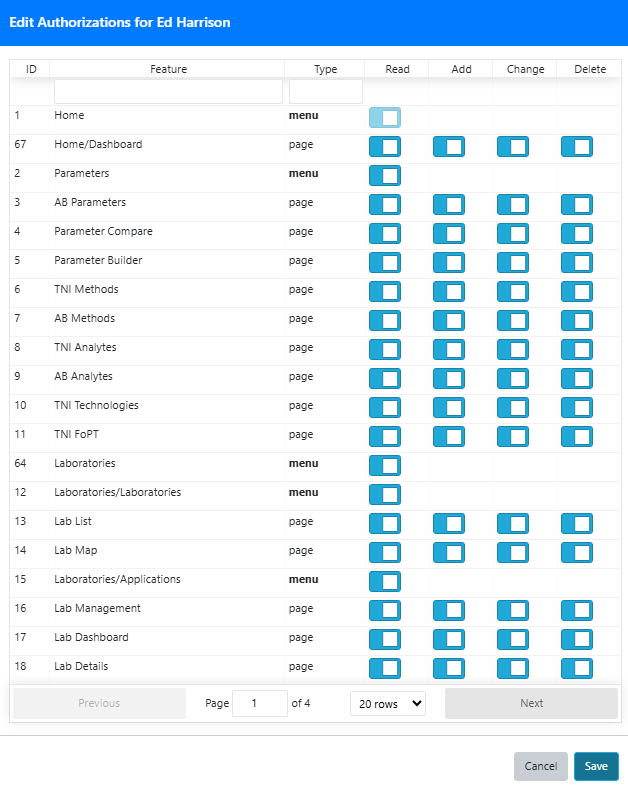
The Edit Authorizations screen displays all available menus and pages, along with permission options:
- Read – View access
- Add – Create new records
- Change – Modify existing records
- Delete – Remove records
Permissions can be set individually for each feature.
How It Works
- Menu rows (Type = menu) control visibility of navigation items
- Page rows (Type = page) control access within those sections
- Users must have Read access to view a page
- Additional permissions (Add, Change, Delete) enable editing capabilities
Example
A user who only needs to review AB Parameters should be configured with:
- Read = enabled
- Add / Change / Delete = disabled
Notes and Best Practices
- Use the Restricted? setting for contract or external assessors to limit visibility
- Keep Admin access limited to a small number of trusted users
- Use detailed authorizations to fine-tune access instead of creating additional roles