
Attaching and Using Checklists
Checklists are used to document observations during on-site assessments. Checklists can be launched from any assessment that includes an on-site component (see Assessments – Getting Started).
Before attaching a checklist, one or more checklist templates must already exist in the system (see Creating or Editing a Checklist Template).
Creating an Ad Hoc Checklist
Ad hoc checklists are typically used when:
- A single checklist is needed for a specific purpose, or
- The checklist does not correspond directly to individual methods
To create an ad hoc checklist:
- Open the assessment and navigate to the Audit Checklists tab
- Select + Create Ad Hoc Checklist
- In the pop-up window:
- Enter a checklist title
- Select the checklist template to be used
- Assign the checklist to an auditor
- Once the template is assigned, launch the checklist using the play icon
The checklist is now available for completion.
Creating a Checklist for Each Method
For assessments that include multiple analytical methods, AB Manager can automatically create a checklist for each requested method.
To create method-based checklists:
- Select + Create Method Checklists
- When prompted, select Yes to confirm (all method checklists will be added)
- Assign a checklist template to each method using the Setup Checklist button (methods can be assigned a default checklist)
- Checklists can be assigned to individual assessors
- After templates are assigned, build and launch each checklist using the play icon
Note: Changing the ‘assigned to’ person and building the checklist can be done in bulk using multi-select and the actions button.
This approach helps ensure method-specific requirements are reviewed and documented consistently.
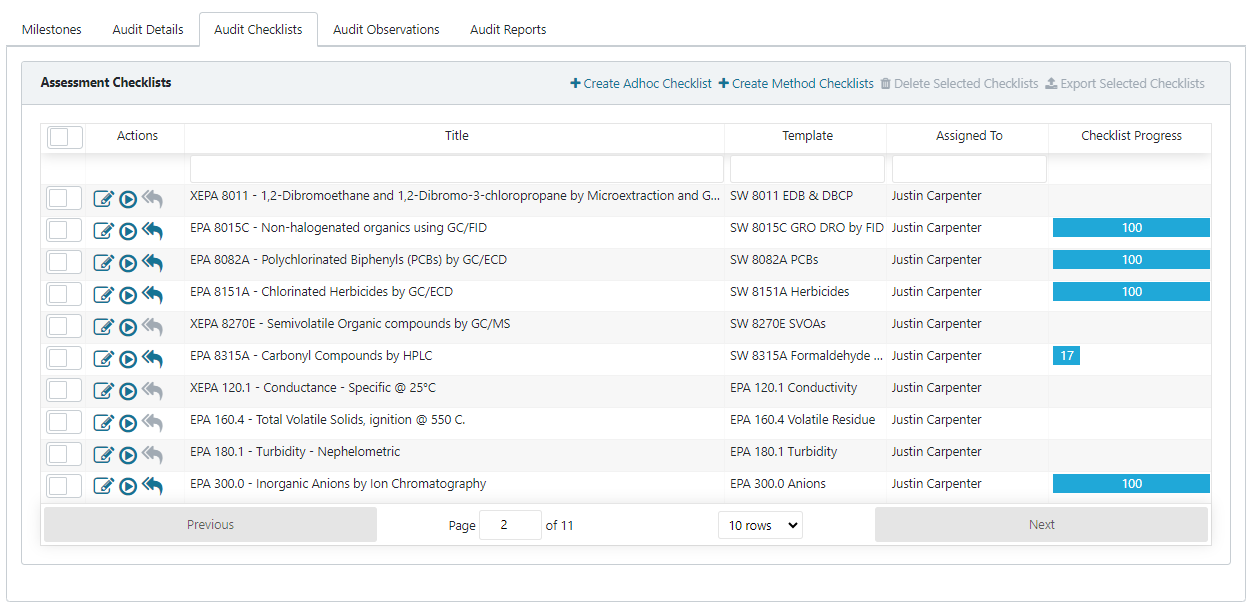
Deleting Selected Checklists
Checklists may be deleted if they are no longer needed.
Important: Deleted checklists cannot be recovered.
To delete checklists:
- Select one or more checklists from the list
- Choose Delete Selected Checklists
- Confirm Delete Selected Checklists when prompted
Exporting Selected Checklists
Checklists—whether blank or completed—can be exported to a multi-page Microsoft Excel spreadsheet. Exported spreadsheets may be used to review or complete checklists offline.
Note: Exported checklist data cannot be imported back into AB Manager.
To export checklists:
- Select one or more checklists
- Choose Export Selected Checklists
- Save the file to local storage