Custom Word Reports
By default, AB Manager includes pre-formatted PDF reports for items such as:
- Approval certificates
- Invoices
- Assessment reports
PDF reports are generated and stored within AB Manager and are intended to be used as final documents without further editing.
The Word Reports feature allows users to create additional reports or form letters that can be exported to the user’s local system and edited if needed. Word reports are commonly used for correspondence and documents that require customization after generation.
Examples include:
- On-site scheduling letters
- Assessment reports requiring additional narrative
- Corrective action acceptance letters
Creating a Word Report Template
Word report templates are created outside of AB Manager using Microsoft Word.
To create a template:
- Design the document in MS Word, including headers, footers, page numbers, and formatting
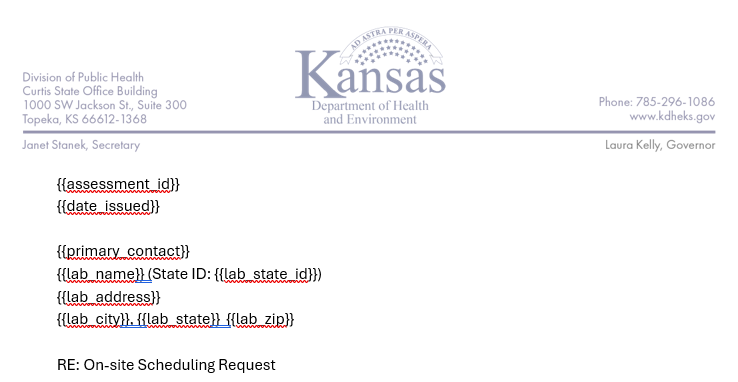
- Insert template variables where AB Manager data should appear.
Template variables are indicated using double curly brackets, for example: {{primary_contact}}. At runtime, AB Manager replaces these variables with values from the assessment, laboratory, or user creating the report. A completed Word template might look something like this:
Laboratory Information Variables
| Template Variable | Description |
| {{primary_contact}} | Lab primary contact |
| {{primary_contact_title}} | Lab primary contact title |
| {{lab_name}} | Lab name |
| {{lab_address}} | Lab physical address1 |
| {{lab_city}} | Lab physical address city |
| {{lab_state}} | Lab physical address state |
| {{lab_zip}} | Lab physical address zip code |
| {{lab_tni_id}} | Lab TNI ID |
| {{lab_epa_id}} | Lab EPA ID |
| {{lab_state_id}} | Lab State ID |
Document Information Variables
| Template Variable | Description |
| {{date_issued}} | Date issued when creating the document |
| {{issued_by_name}} | Issued by when creating the document. Includes first name, last name, and title. |
| {{issued_by_first}} | Issued by first name when creating the document |
| {{issued_by_last}} | Issued by last name when creating the document |
| {{issued_by_title}} | Issued by title when creating the document |
| {{issued_by_email}} | Issued by email when creating the document |
| {{issued_notes}} | Notes when creating the document |
Assessment Variables
| Template Variable | Description |
| {{assessment_id}} | Assessment ID from AB Manager |
| {{assessment_title}} | Assessment title |
| {{assessment_type}} | Assessment type |
| {{onsite_start_date}} | Onsite start date from Onsite Info tab |
| {{onsite_end_date}} | Onsite end date from Onsite Info tab |
| {{assessor_names}} | Those listed as assessors on Onsite Info tab |
| {{personnel_names}} | Those listed as key personnel on Onsite Info tab |
| {{assessment_findings}}* | Observations designated as ‘findings’ on the Observations tab |
| {{assessment_recommendations}}* | Observations listed as ‘recommendations’ on the Observations tab |
| {{complete_date}} | Refers to the overall assessment completion date – when all related milestones have been completed |
Adding a Report Template to AB Manager
Users with the Admin role can add Word report templates in:
Setup → Configuration → Word Templates
To add a template:
- Select Add Template
- Enter a name, type, and description
- Upload the Word template file
Existing templates can be updated by selecting the template name and uploading a new version. Users with the Admin role can add report templates to AB Manager using the Setup/Configuration/Word Templates tab. Select ‘add template’ to add a new template (including name, type, and description). The template itself can be easily updated by selecting the template name and adding the new template version.
Producing a Word Report
Word reports can be generated from any assessment.
To produce a Word report:
- Open the assessment
- Select the desired Word report template
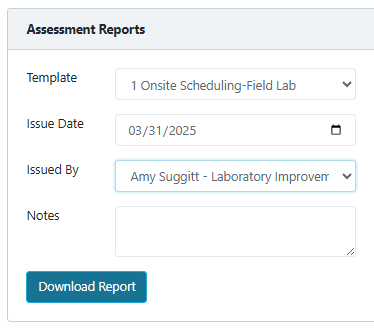
- Enter the issue date and issued-by information
- Optionally add notes
- Select Download Report
The generated Word document is saved to the user’s local or network drive (typically the Downloads folder).